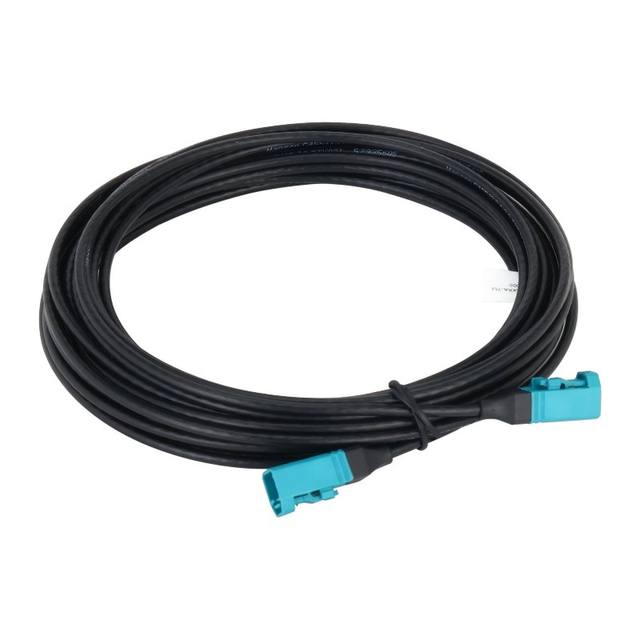
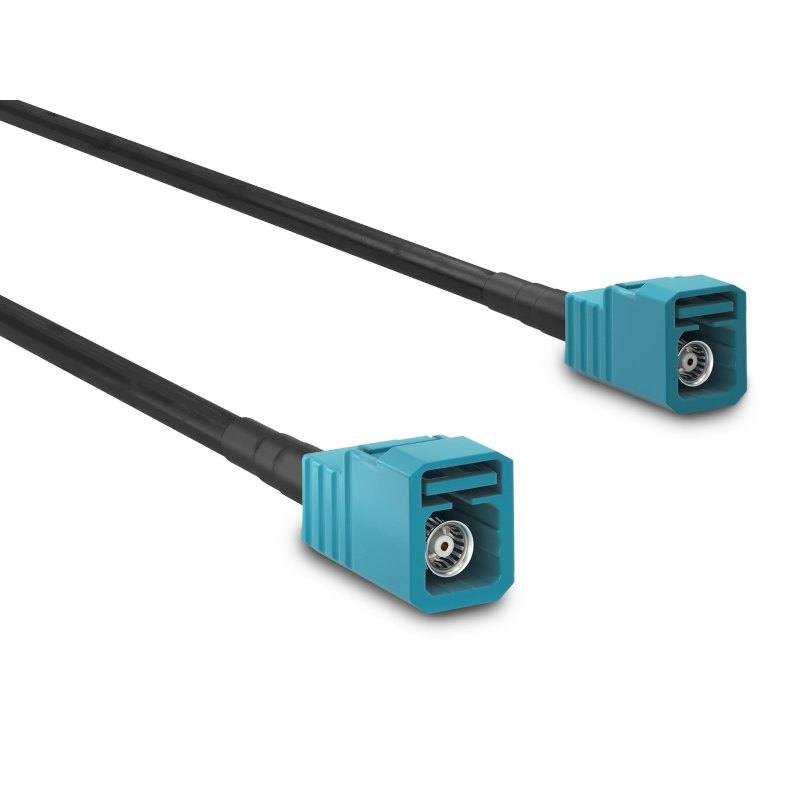
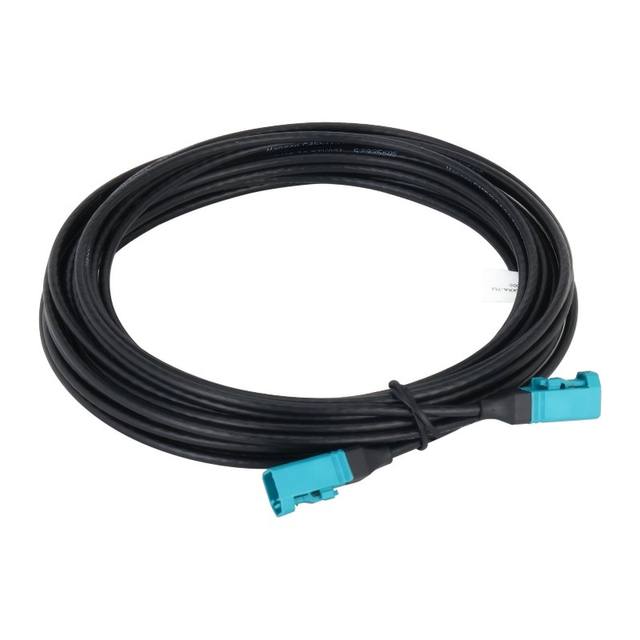
Basler Cable GMSL, FAKRA-Z, 1x F/F — GMSL2 coaxial data cable, FAKRA-Z, female (camera side), to FAKRA-Z, female (host side), static installation, 4 lengths 3–15 m. The cable connects an ace 2 GMSL camera and an industrial PC. Thanks to its high electromagnetic compatibility (EMC), it ensures reliable and interference-free data transmission. It is particularly well suited for demanding industrial applications.
Brand
Basler
Cable type
GMSL2 coaxial data cable (Basler interface "GMSL2")
GMSL2 is a serial link technology from automotive electronics that carries video and control over a single coax. This cable is the 1x FAKRA-Z female-to-female version for the Basler ace 2 GMSL camera and an industrial PC: 3, 5, 10 and 15 m, Standard line, 36-month warranty, for static installation. Basler cites high electromagnetic compatibility (EMC) for it.
Both ends are female, so the camera and the host must each present male FAKRA-Z connectors. The industrial PC also needs a GMSL2 input, typically a deserialiser board, because a standard PC has none. One cable serves one camera, and 15 m is the longest option, so place the PC within that reach. Check whether the camera takes power over the coax or from a separate supply.
Best for
Compact embedded-style ace 2 GMSL camera installations connected to an industrial PC within 15 m.
Machines with strong electrical noise, where a shielded coax link with good EMC is preferable to a long USB run.
Vehicles and mobile machines, where latching FAKRA connectors from automotive use typically stay seated under vibration.
Selection notes
The compatible camera is the ace 2; confirm the GMSL2 model before ordering.
Verify that the PC's GMSL2 interface uses FAKRA-Z male connectors, since this cable is female at both ends.
Static installation only: a camera that moves needs a flex-rated cable.
Choose 3, 5, 10 or 15 m by the route, since longer coax typically attenuates more.
Specifications: General
Brand
Basler
Cable type
GMSL2 coaxial data cable (Basler interface "GMSL2")
Compatible with
Area Scan Cameras: Basler ace 2
Specifications: Interface
Connector A
FAKRA-Z, female (camera side)
Connector B
FAKRA-Z, female (host side)
Specifications: Mechanical
Cable length
3–15 m (3, 5, 10, 15 m)
High-flex / drag chain
No — static installation (Basler: "static")
This product groups every purchasable order code that shares the same sensing method, range and output. Cable length, connector type and operation mode (Light-ON/Dark-ON, NO/NC) vary by order code below.
Get a first image quickly with the pylon Viewer, then move into the pylon SDK for your application. These cameras are GenICam/GenTL-compliant, so any compliant vision software can drive them as well.
Download and install the pylon Camera Software Suite for your OS from Basler. This provides the pylon Viewer, the GenTL transport-layer producers and the pylon SDK (C/C++/.NET/Python). On Windows the installer adds the needed drivers; on Linux follow the included setup notes for USB and network permissions.
2. Connect the camera and check the link
Cable the camera to its matching interface: GigE Vision to a GigE port (use a quality cable and, ideally, a dedicated NIC with jumbo frames enabled), USB3 Vision to a USB 3.x port with the supplied cable, or CoaXPress to the frame grabber. Provide power where required (PoE, USB bus power, or PoCXP). Open the pylon Viewer and confirm the camera appears in the device list; for GigE, make sure the camera and NIC are on the same subnet.
3. Grab a first image and set exposure, gain and pixel format
Select the camera in the pylon Viewer and start a continuous grab. Adjust exposure time and gain until the image is well exposed (avoid clipped highlights), set the pixel format (e.g. Mono8 or a Bayer/RGB format), and focus the lens. Use a test pattern if the lens or scene is not ready yet.
4. Configure triggering and acquisition
Decide between free-run and triggered acquisition. For synchronized capture, set the trigger source (software or a hardware line on the I/O connector), trigger mode and any debounce or exposure mode, then verify timing. Note the parameter names you change in the Viewer feature tree, as you will reuse them in code.
5. Move to the SDK or a GenICam-compliant library
Recreate your settings in code with the pylon SDK (C, C++, .NET or Python) to open the device, apply the same features and pull frames into your pipeline; pylon vTools and pylon AI can add processing blocks. Because the cameras are GenICam/GenTL standard, third-party vision libraries work too. Once the image stream is stable, you can route frames to a deep-learning inspection such as Rosepetal for automated defect detection.
Frequently asked questions
An ace 2 GMSL camera and an industrial PC with a GMSL2 interface that has FAKRA-Z male connectors.