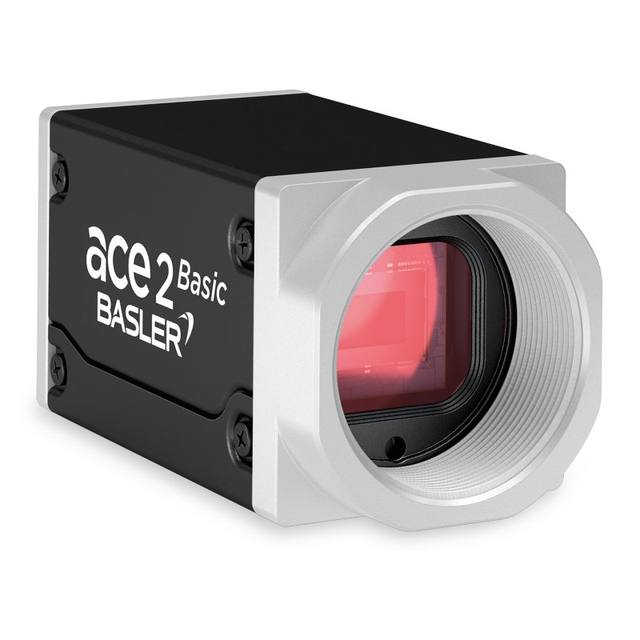
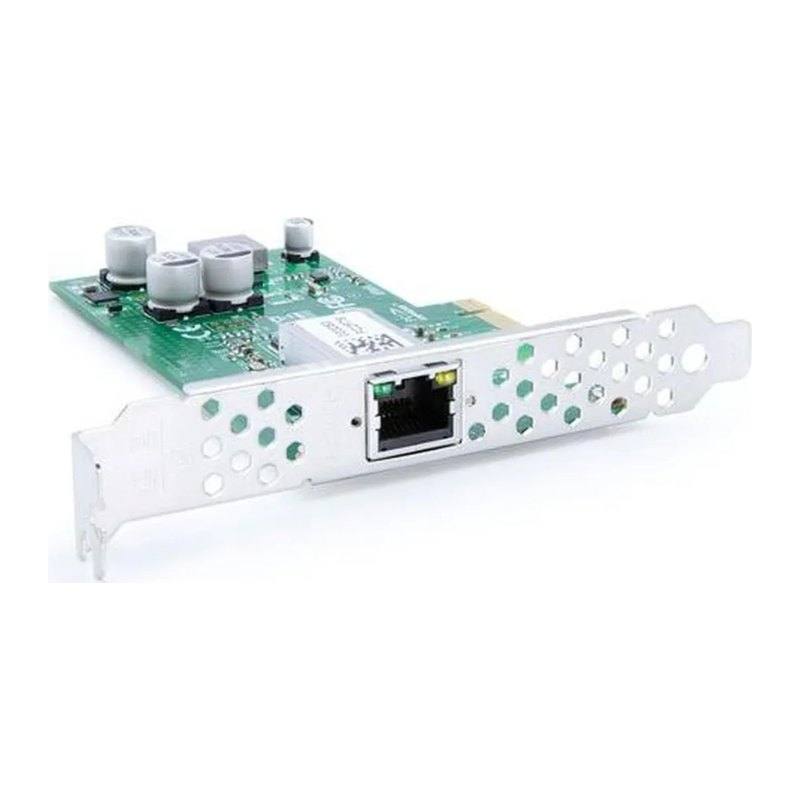
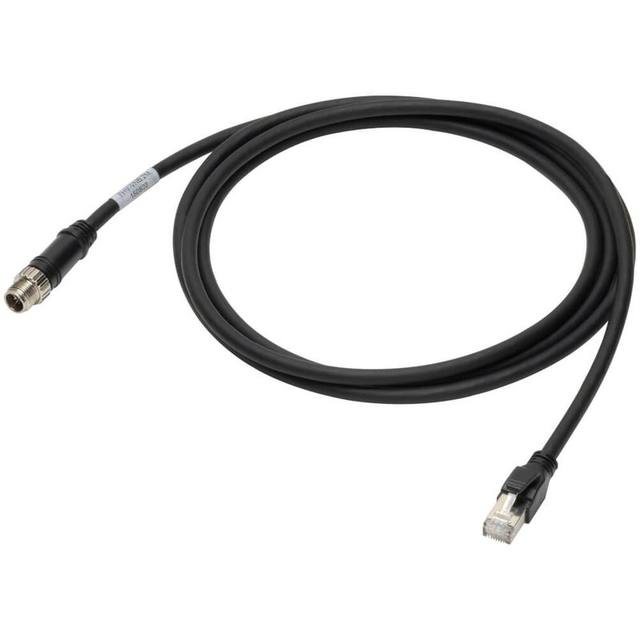
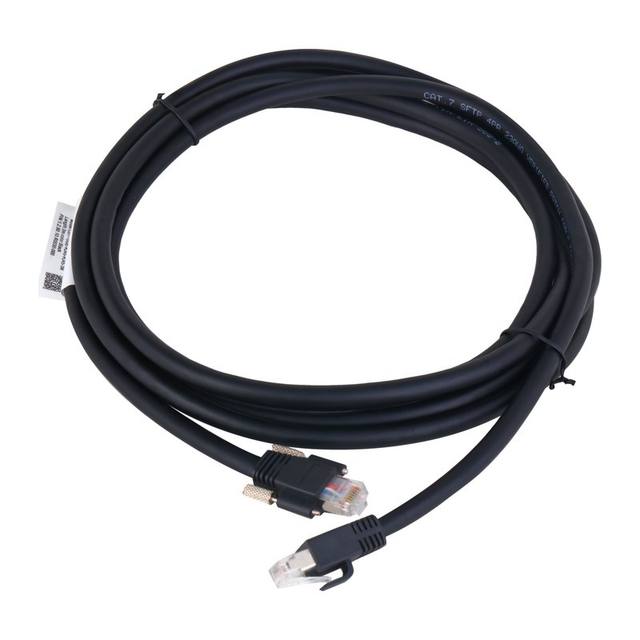
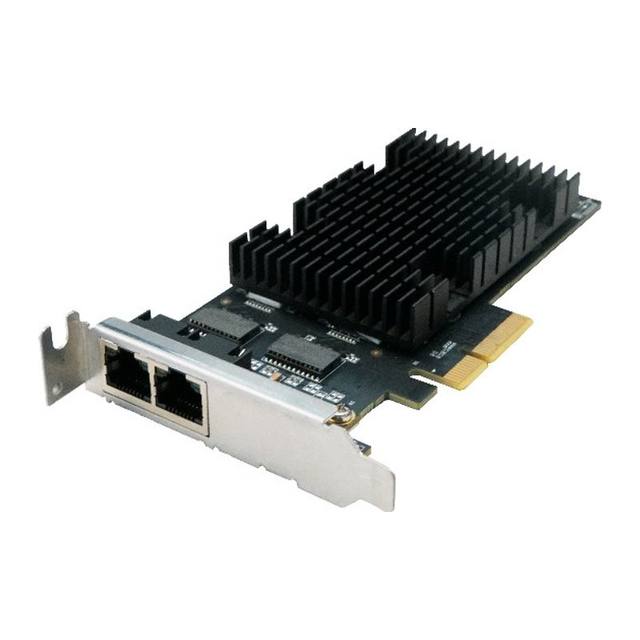
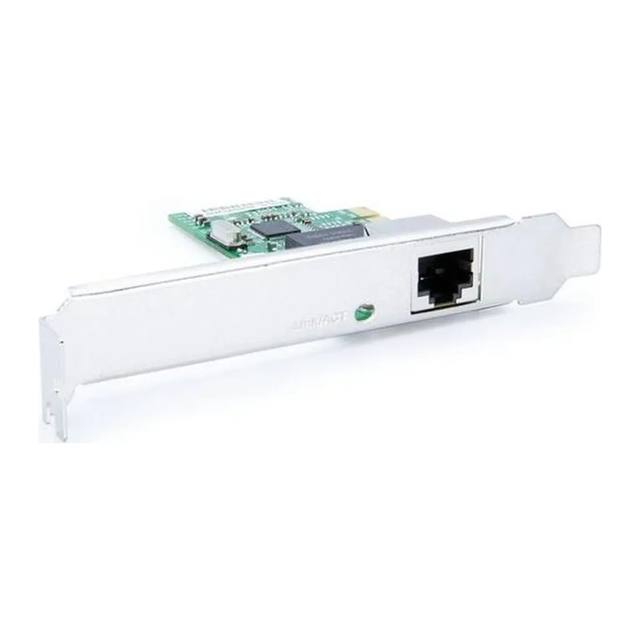
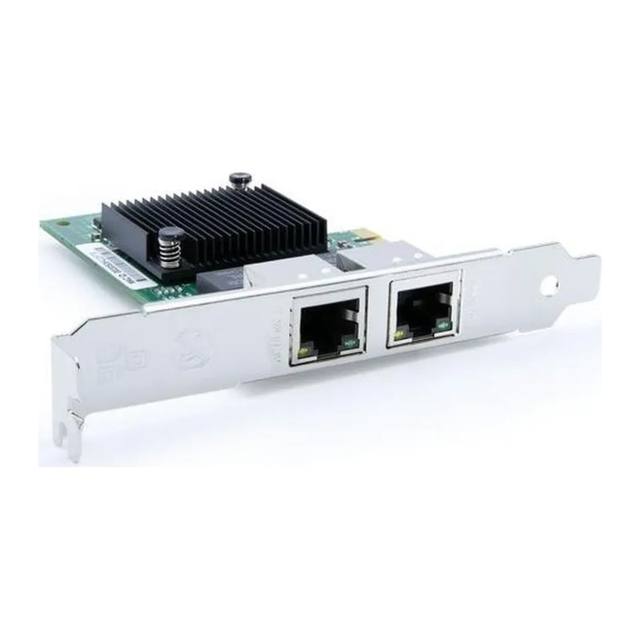
The Basler GigE Interface Card, 1 Port PoE is an interface card (GigE / USB) with one independent Gigabit Ethernet port for data transfer. The bandwidth is 1 Gbit/s, the host bus is PCIe 2.1 x1, and power over cable is PoE (IEEE 802.3af). Basler describes it as supporting up to 1 GigE camera using Power over Ethernet (PoE).
The PoE function is the distinguishing feature. A camera that accepts PoE (IEEE 802.3af) can receive both data and power through the single Ethernet cable from the card, which avoids a separate power line at the camera head. The single-lane PCIe 2.1 x1 host bus keeps the slot requirement modest.
The operating temperature range is 0 - 55 °C (32 - 131 °F), which should be checked against the temperature inside the PC enclosure.
Best for
Single-camera GigE stations where data and power share one Ethernet cable
Camera heads where routing a separate power cable is inconvenient
Hosts that offer a PCIe 2.1 x1 slot
PC-based inspection systems using a PoE (IEEE 802.3af) GigE camera
Selection notes
Use it with GigE cameras that accept PoE (IEEE 802.3af); the card has one camera port at 1 Gbit/s.
Check the camera's power class against the PoE (IEEE 802.3af) standard stated for this card.
Reserve a PCIe slot for the PCIe 2.1 x1 host bus.
Check the 0 - 55 °C (32 - 131 °F) operating range against the conditions inside the PC enclosure.
If several PoE cameras are required, plan more card ports, since this card supports up to 1 camera.
Specifications: General
Brand
Basler
Card type
Interface card (GigE / USB)
Specifications: Performance
Total bandwidth
1 Gbit/s
Specifications: Interface
Interface
GigE, PoE
Camera ports
1
PC bus
PCIe 2.1 x1
Specifications: Electrical
Power over cable (PoE / PoCXP / PoCL)
PoE (IEEE 802.3af)
Specifications: Environment
Operating temperature
0 - 55 °C (32 - 131 °F)
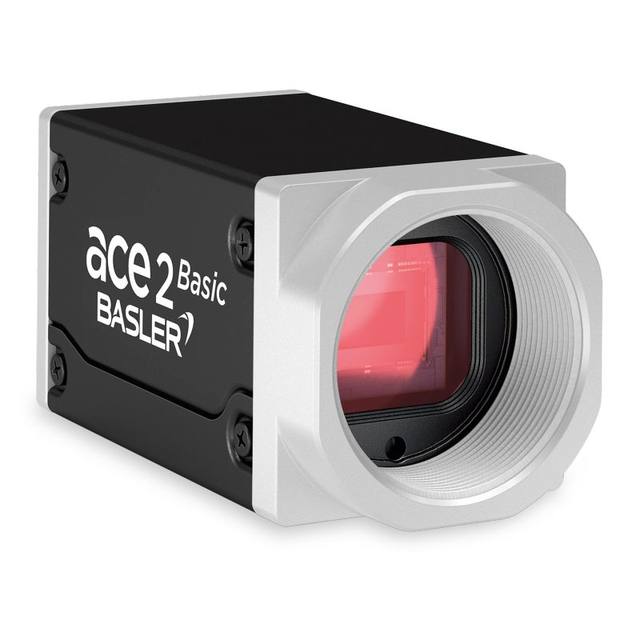
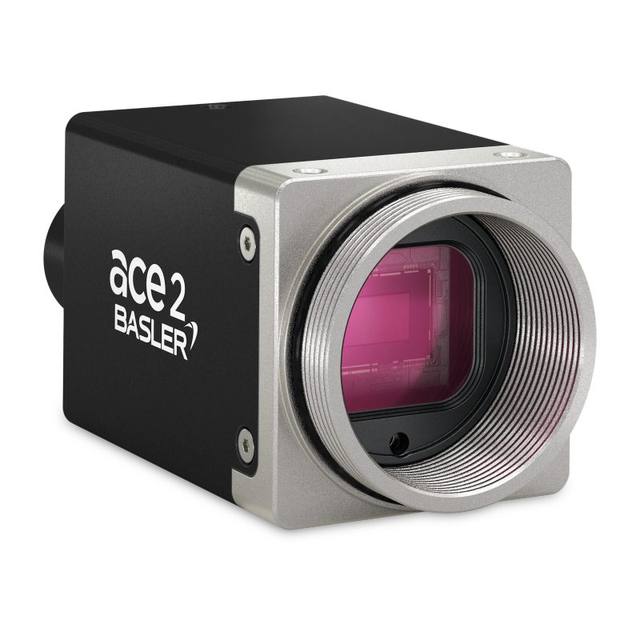
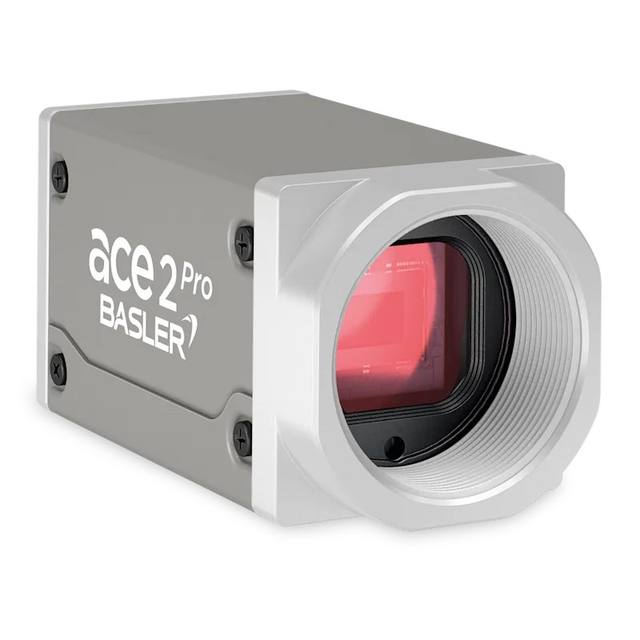
857 cameras are compatible with this card.
Matched automatically by: camera interface matches the card (gige vision) · card link speed is at least the camera link speed (cxp-6 / cxp-12, 1–10 gige) — this card: GigE, PoE · 1 camera port.
Get a first image quickly with the pylon Viewer, then move into the pylon SDK for your application. These cameras are GenICam/GenTL-compliant, so any compliant vision software can drive them as well.
Download and install the pylon Camera Software Suite for your OS from Basler. This provides the pylon Viewer, the GenTL transport-layer producers and the pylon SDK (C/C++/.NET/Python). On Windows the installer adds the needed drivers; on Linux follow the included setup notes for USB and network permissions.
2. Connect the camera and check the link
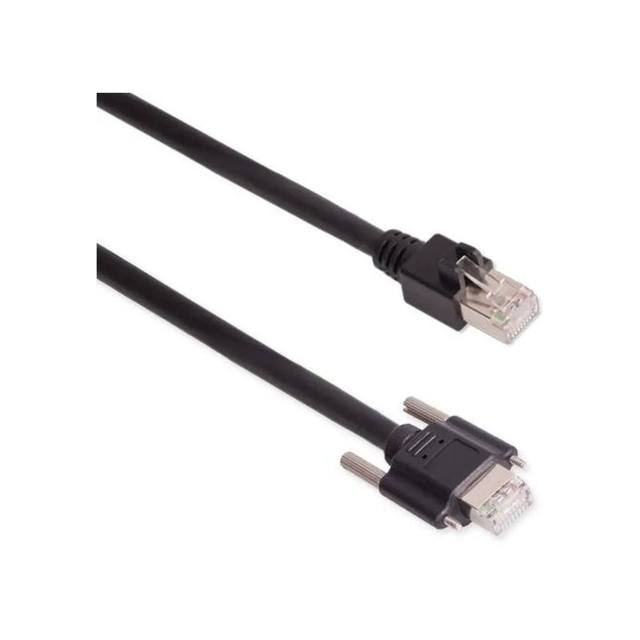
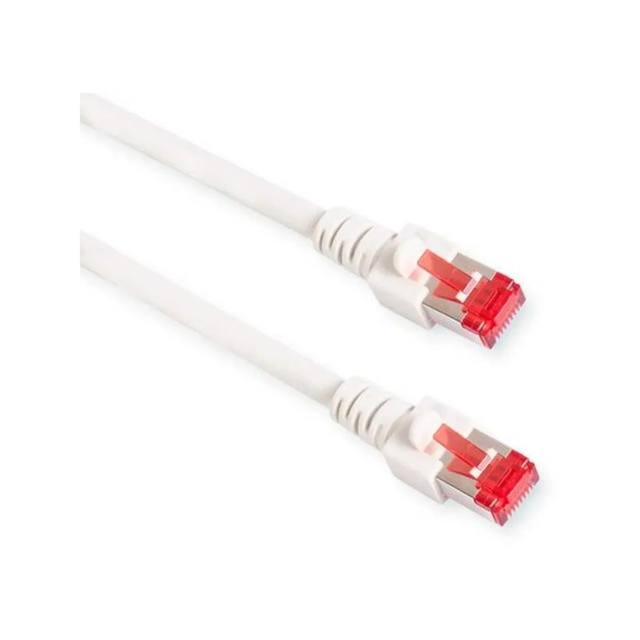
Cable the camera to its matching interface: GigE Vision to a GigE port (use a quality cable and, ideally, a dedicated NIC with jumbo frames enabled), USB3 Vision to a USB 3.x port with the supplied cable, or CoaXPress to the frame grabber. Provide power where required (PoE, USB bus power, or PoCXP). Open the pylon Viewer and confirm the camera appears in the device list; for GigE, make sure the camera and NIC are on the same subnet.
3. Grab a first image and set exposure, gain and pixel format
Select the camera in the pylon Viewer and start a continuous grab. Adjust exposure time and gain until the image is well exposed (avoid clipped highlights), set the pixel format (e.g. Mono8 or a Bayer/RGB format), and focus the lens. Use a test pattern if the lens or scene is not ready yet.
4. Configure triggering and acquisition
Decide between free-run and triggered acquisition. For synchronized capture, set the trigger source (software or a hardware line on the I/O connector), trigger mode and any debounce or exposure mode, then verify timing. Note the parameter names you change in the Viewer feature tree, as you will reuse them in code.
5. Move to the SDK or a GenICam-compliant library
Recreate your settings in code with the pylon SDK (C, C++, .NET or Python) to open the device, apply the same features and pull frames into your pipeline; pylon vTools and pylon AI can add processing blocks. Because the cameras are GenICam/GenTL standard, third-party vision libraries work too. Once the image stream is stable, you can route frames to a deep-learning inspection such as Rosepetal for automated defect detection.
Frequently asked questions
Yes. Power over cable is PoE (IEEE 802.3af), and Basler describes support for up to 1 GigE camera using Power over Ethernet (PoE).
It has 1 camera port, so it connects one GigE camera.