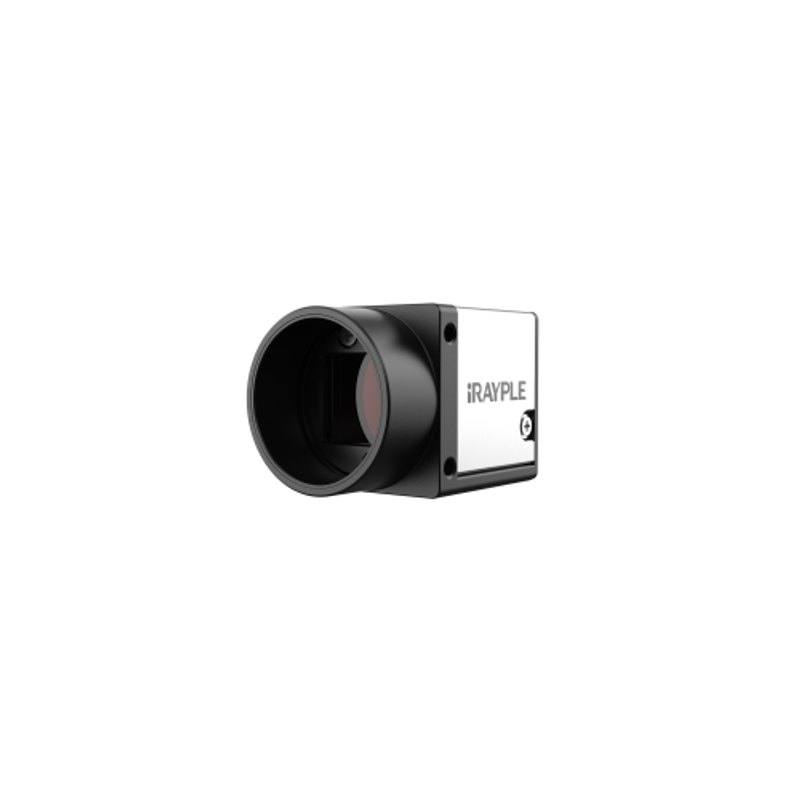
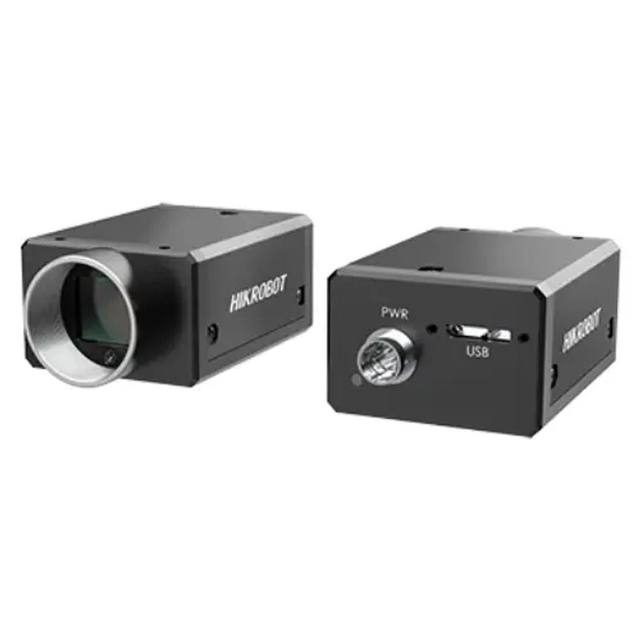
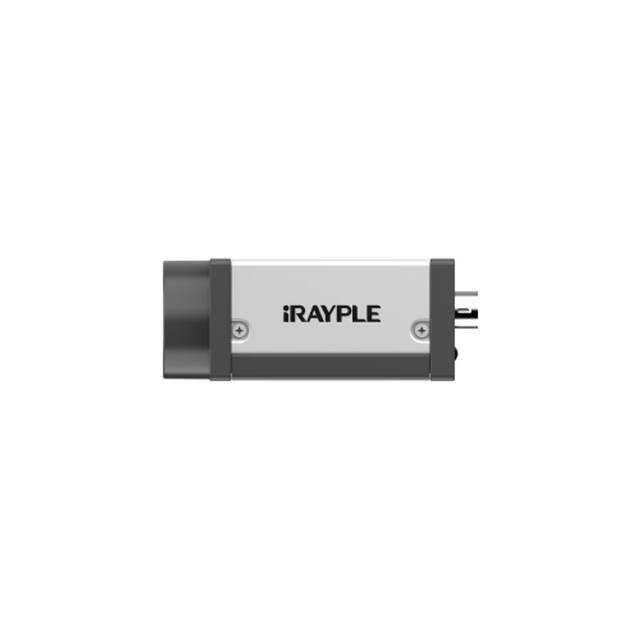
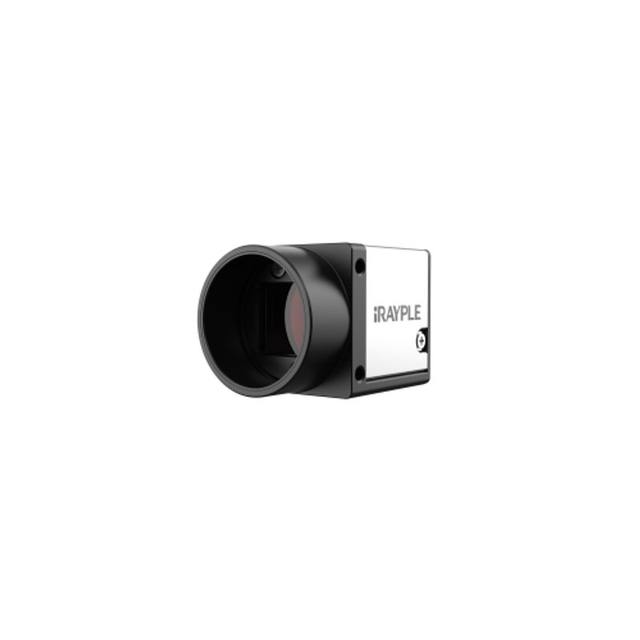
The iRAYPLE AH3B47CU000E is a 24.0 MP color area scan camera built on a GMAX2424 sensor in a 1.1-inch CMOS format, with a 6,016 x 4,096 pixel frame and 2.4 µm pixels. The rating is 15.4 fps at 6,016 x 4,096 in Bayer RG 8 output. Its interface is USB 3.0, so it connects to a host PC rather than a GigE network.
The shutter is listed as Rolling/GlobalResetRealease. Power can come from the USB connector or from DC 9 V to 24 V on the Hirose connector, with a draw of 3.3 W. The compact 29 x 29 x 30 mm body (not including lens mount and rear case connector) weighs 85 g and is rated for -30 to +50 °C. The C-mount flange accepts C-mount lenses.
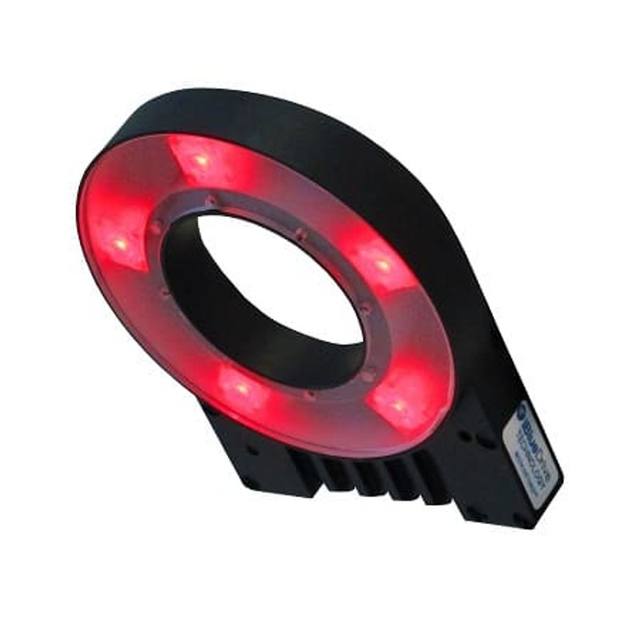
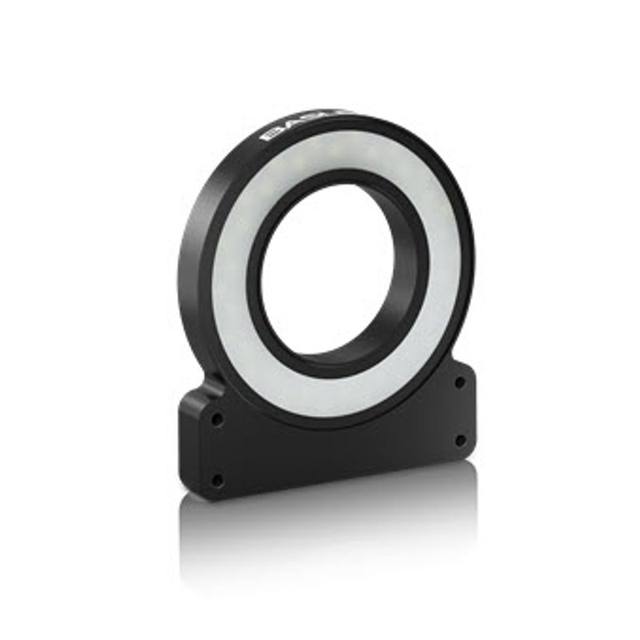
The 2.4 µm pixels across 6,016 pixels demand a lens with real resolving power, and Bayer RG 8 is a raw mosaic format, so RGB images require debayering in host software. USB 3.0 throughput and the host PC must keep up with the full-frame rate of 15.4 fps. Lighting should be sized for the small pixels, and the lens should be chosen to match the 2.4 µm pixel pitch so that the pixel count translates into resolved detail.
Best for
PC-based high-resolution color inspection connected by USB 3.0.
Full-frame color capture of large static parts at 15.4 fps.
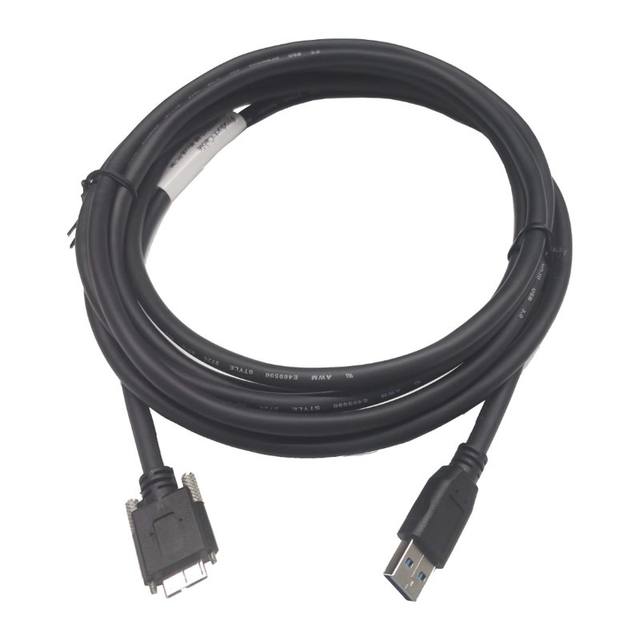
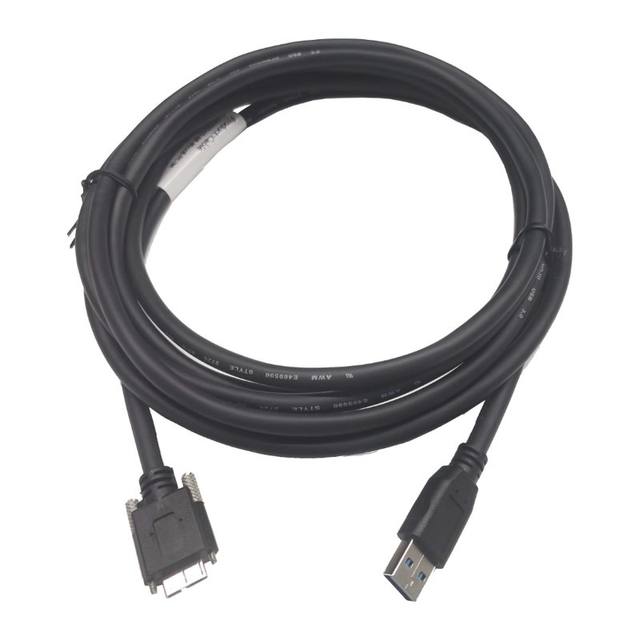
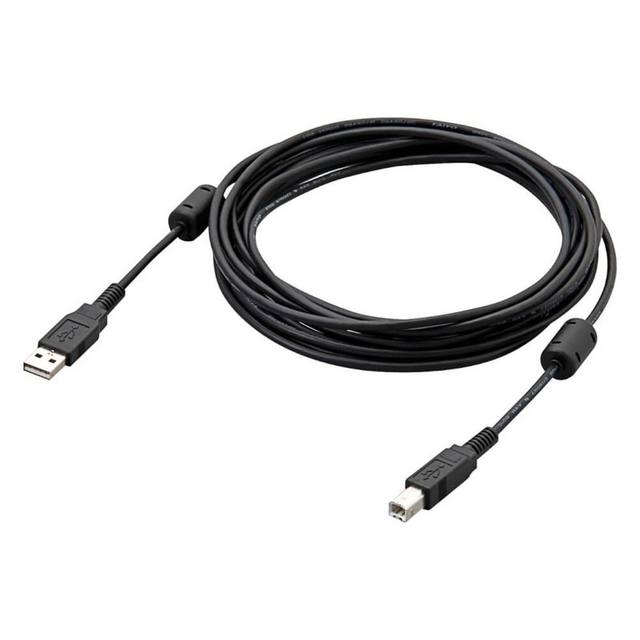
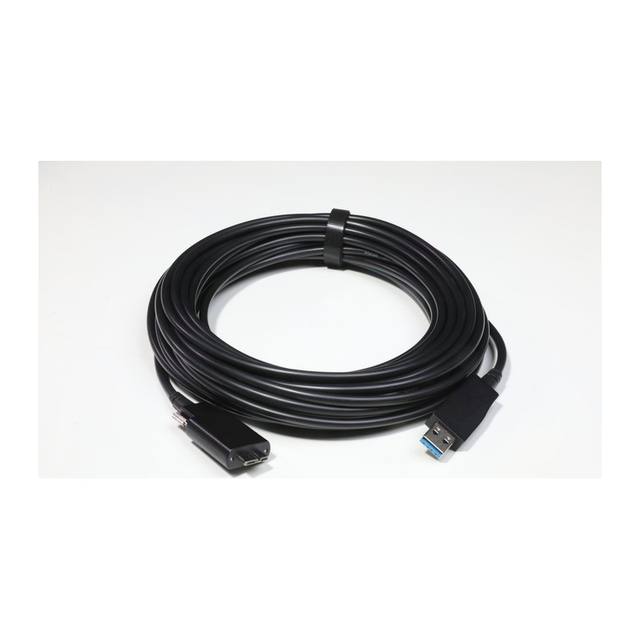
Installations that use USB 3.0 cabling to a host PC for high-resolution color capture.
Installations that need the -30 to +50 °C operating range.
Selection notes
Confirm the exposure behaviour of the Rolling/GlobalResetRealease shutter with the supplier before using the camera on moving parts.
Verify the host's USB 3.0 capacity for 24 MP frames at 15.4 fps.
Plan debayering of the Bayer RG 8 output if you need RGB images.
Choose a high-resolution C-mount lens matched to the 2.4 µm pixels and the 1.1-inch format.
Power from either the USB connector or 9 V to 24 V DC on the Hirose connector. The draw is 3.3 W.
Specifications: General
Brand
iRAYPLE
Camera type
Area Scan
Specifications: Sensor
Sensor model
GMAX2424
Sensor manufacturer
Gpixel
Sensor size
1.1"CMOS
Shutter
Rolling/GlobalResetRealease
Mono / color
Color
Resolution
24.0 MP
Horizontal resolution
6016 × 4096 px
Pixel size
2.4 μm × 2.4 μm
Specifications: Performance
FPS
15.4 fps @6016 × 4096 Bayer RG 8
Specifications: Interface
Interface
USB 3.0
Specifications: Optics
Mount
C-mount
Specifications: Electrical
Supply voltage
Power supply via USB connector /DC power supply by Hirose connector, with voltage range from 9V to 24V
Power consumption
3.3 W
Specifications: Environment
Operating temperature
-30℃~+50℃
Specifications: Mechanical
Dimensions
29 mm×29 mm×30 mm (not including lens mount and rear case connector)
Weight
85 g
Applications this product is commonly selected for. Open one to see the full recommended hardware and approach.
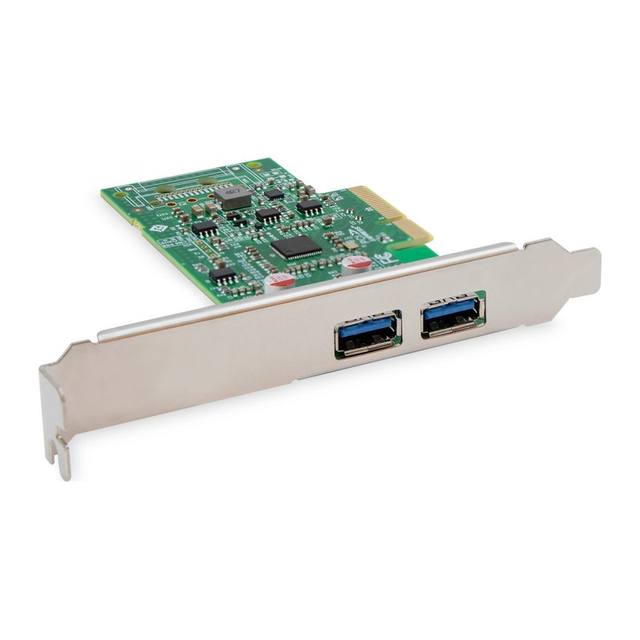
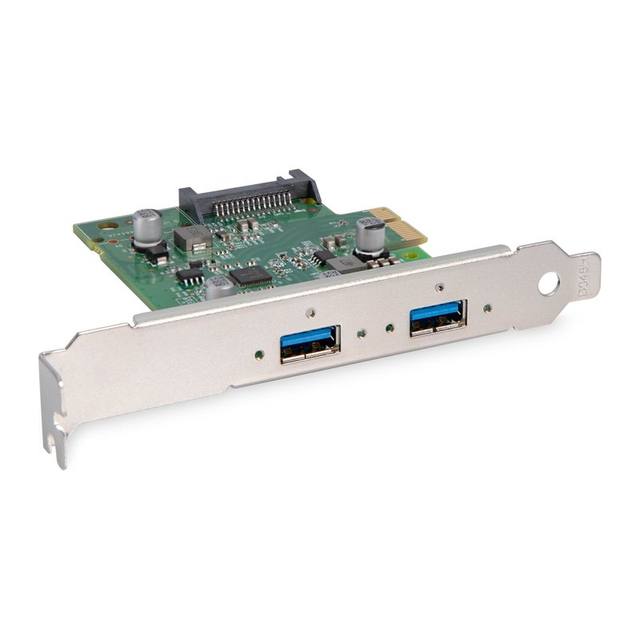
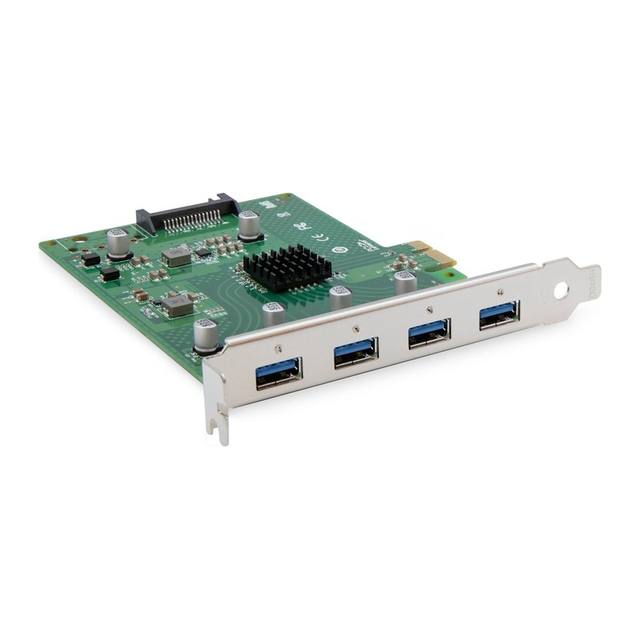
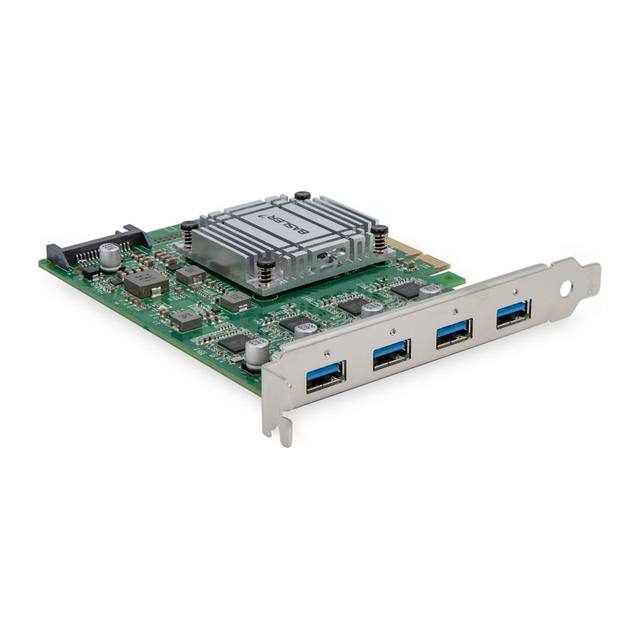
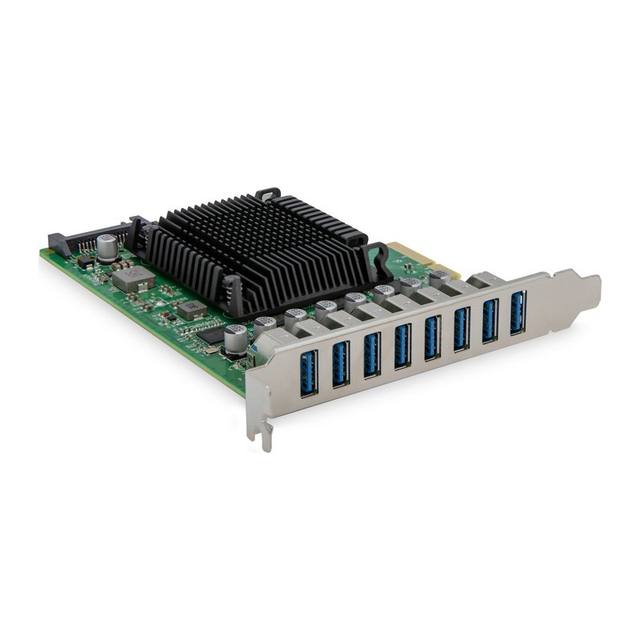
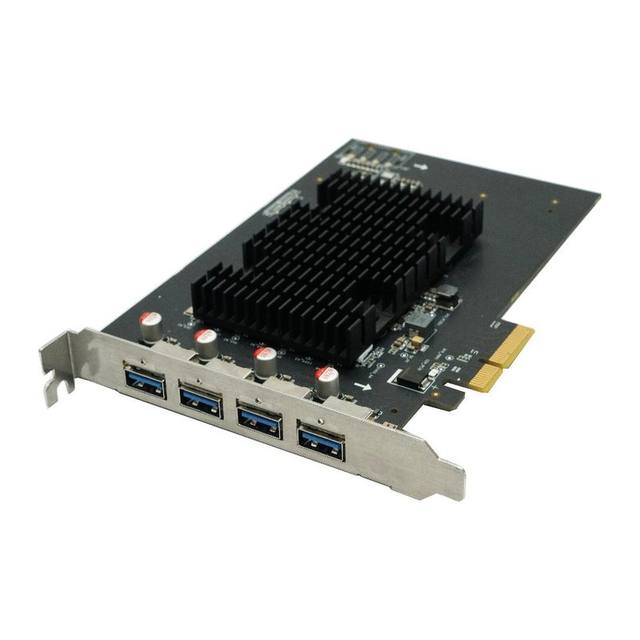
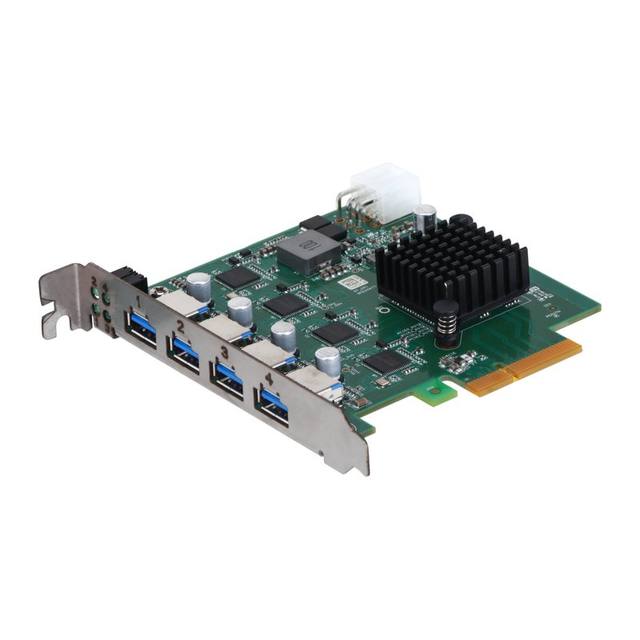
9 frame grabbers / interface cards are compatible with this camera.
Matched automatically by: card supports the camera interface (usb3 vision) · card link speed is at least the camera link speed (cxp-6 / cxp-12, 1–10 gige) — this camera: USB 3.0.
Follow these steps to bring up your iRAYPLE camera, capture a first image, and move from the viewer to your own application. The flow is the same across the A, AE, AX and L series; only the physical interface differs.
Download and install the iRAYPLE machine-vision SDK together with its viewer client for your operating system. The installer provides the camera drivers, the GenTL producer, and the viewer you will use for first light. For GigE Vision models, also install or enable the bundled filter/performance driver on the network adapter to maximize throughput.
2. Connect the camera to the correct interface
Wire the camera to its matching host interface: a dedicated Gigabit (or 10 GigE) NIC for GigE Vision models, a USB3 Vision port with a quality cable for USB3 models, or a frame grabber for CoaXPress models. Power the camera (PoE, USB bus power, or PoCXP / external supply as applicable). For GigE Vision, put the NIC and camera on the same subnet and, where supported, enable jumbo frames.
3. Detect and open the camera in the viewer
Launch the iRAYPLE viewer, run device enumeration, and select your camera from the discovered list. Open it to load the device feature tree (GenICam node map). If a GigE camera is found but cannot be opened, correct the IP configuration so the camera and NIC are in the same address range.
4. Set exposure, gain and trigger, then grab a first image
Start with continuous (free-run) acquisition under stable lighting. Adjust exposure time and gain for a well-exposed, low-noise image, set the pixel format (e.g. Mono8 or a Bayer/RGB format), and tune white balance on color models. Once the live image looks correct, switch trigger mode to hardware or software trigger to synchronize capture with your process, and verify a single triggered frame.
5. Move from the viewer to the SDK or a GenICam library
With imaging confirmed, reproduce the same settings in code using the SDK's C/C++ or Python API: enumerate, open, configure the relevant GenICam features, register a frame callback or grab loop, and convert frames to your pipeline's buffer format. Since the cameras are GenICam/GenTL-compliant, you can alternatively drive them from a third-party GenICam vision library. From here a stable image stream can feed a deep-learning inspection step such as Rosepetal for automated quality control.
Frequently asked questions
15.4 fps at 6,016 x 4,096 in Bayer RG 8 output.
USB 3.0.
Color.
The shutter is listed as Rolling/GlobalResetRealease. For moving objects, confirm the exact exposure behaviour with the supplier before use.
Through the USB connector or DC 9 V to 24 V on the Hirose connector, drawing 3.3 W, with an operating range of -30 to +50 °C.