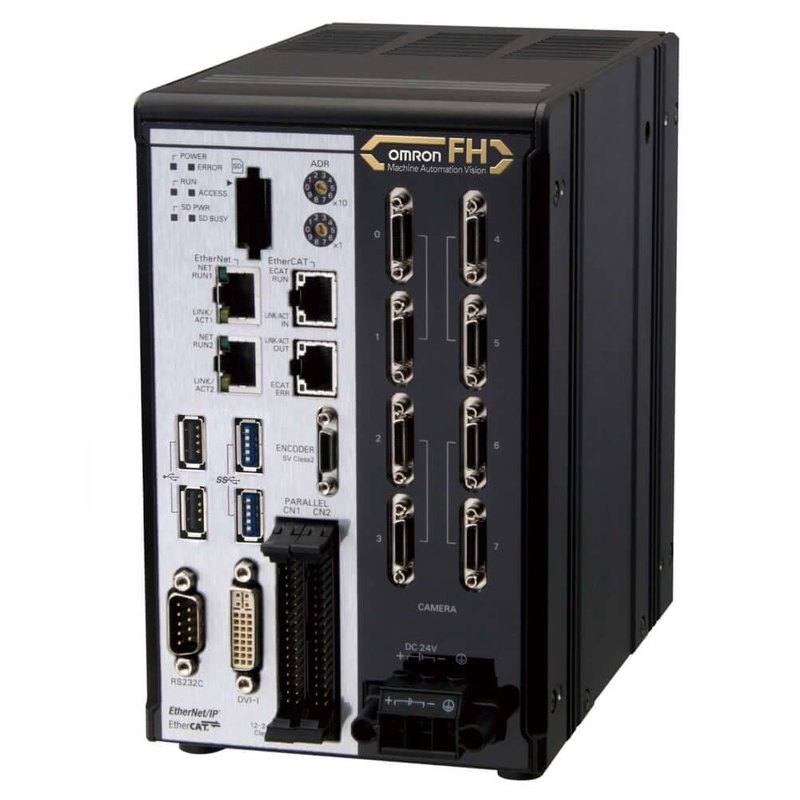
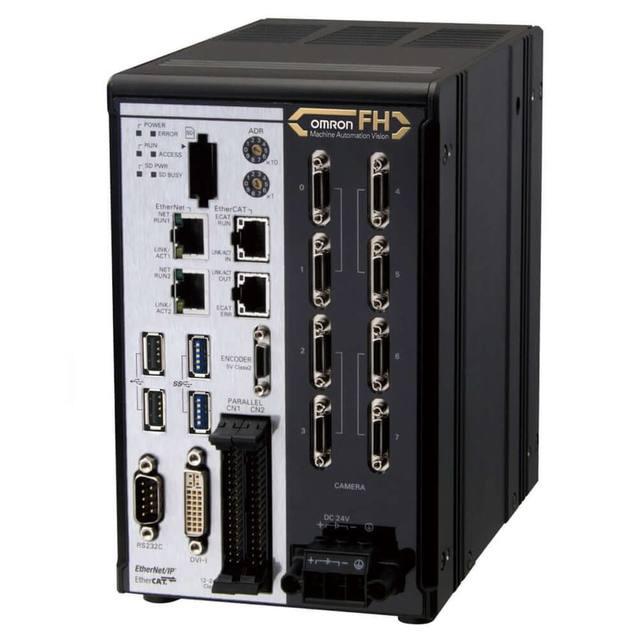
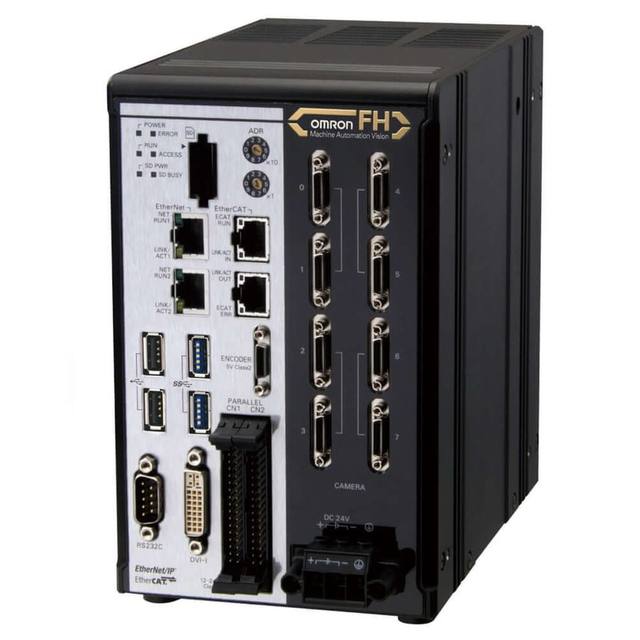
Two camera ports, a 4-core Intel Core i7 and 32 GB of non-ECC RAM make the FH-5551 the base of the Core i7 line. Every camera and every tool shares those cores, so cycle time depends on how many views are processed at once and how heavy the tools are; AI tools are typically among the heaviest. Omron names this the extended-storage version but does not publish the drive capacity, so confirm it if you archive rejected images for traceability.
Two AI tools are available: AI Fine Matching and an AI scratch-detection filter, the second aimed at surfaces where fixed thresholds typically confuse fine scratches with texture. Omron supplies the AI filter installer as the FH-UMAI1 USB licence dongle, an accessory. The controller speaks EtherNet/IP, PROFINET and EtherCAT as well as Ethernet, RS-232, USB and PNP/NPN parallel I/O.
Best for
Two-view inspection of scratch-prone parts, where the AI scratch-detection filter helps separate fine scratches from surface texture that fixed thresholds confuse.
2D robot guidance with one or two cameras; Omron also names 3D bin picking for this model, which needs additional 3D sensing hardware, so confirm the configuration with us first.
Regulated production such as pharmaceutical packaging, where Omron's 21 CFR Part 11 / GMP compliance-ready upgrade for the FH series supports audited electronic records.
Selection notes
Camera count: FH-5551-10 has 4 ports and FH-5551-20 has 8, both on the same 4-core processor and 32 GB of RAM. For more processing behind two ports, FH-5552 has 8 cores.
If rule-based tools are enough, the Lite FH-L551 (Intel Atom, 4 GB RAM, no AI tools, EtherNet/IP and PROFINET) also has two ports.
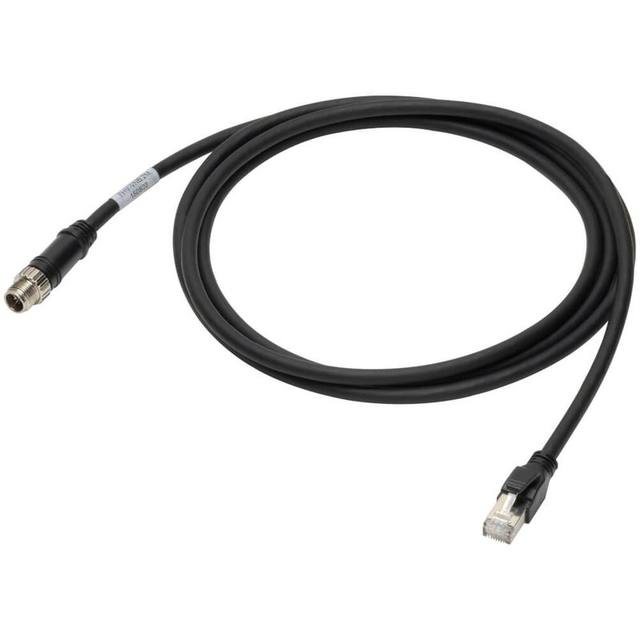
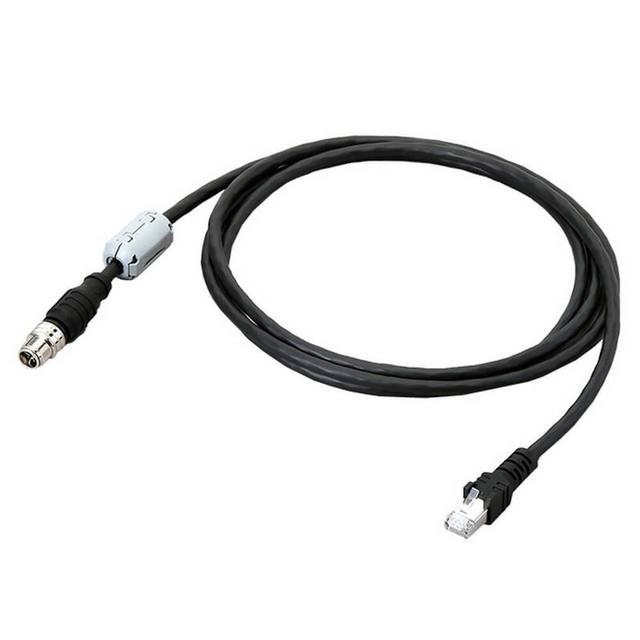
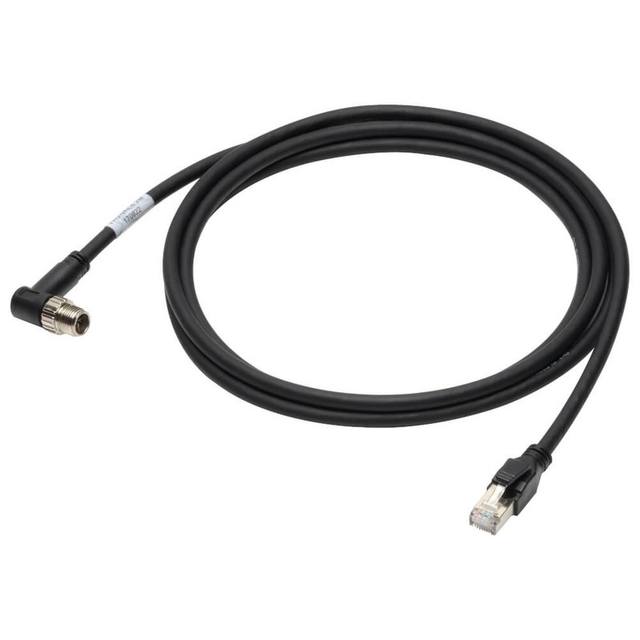
Plan a display for set-up, as no monitor is integrated. Supply is 24 V DC; check the PNP/NPN polarity of the parallel I/O against your PLC, and add the parallel I/O cables, which are accessories.
Specifications: General
Brand
Omron
AI / deep learning
Yes — AI Fine Matching + AI scratch-detection filter
Specifications: Performance
On-board processing
Intel Core i7 (4-core) — Omron performance class "Very high"
On-board memory
32 GB RAM (non ECC)
Specifications: Interface
Camera ports
2 cameras
Communication
Ethernet, EtherNet/IP, PROFINET, EtherCAT, RS-232, USB, digital I/O (PNP/NPN)
Trigger / GPIO
Parallel I/O, PNP/NPN outputs (parallel I/O cables listed as accessories)
Specifications: Electrical
Supply voltage
24 V DC (Omron category filter)
Specifications: Software
Operating systems
Windows 10 IoT Enterprise 2019 LTSC - 64 bit
Software / API
FH vision software; Open FH runs vision algorithms developed in MVTec HALCON HDevelop (FH-series feature)
This product groups every purchasable order code that shares the same sensing method, range and output. Cable length, connector type and operation mode (Light-ON/Dark-ON, NO/NC) vary by order code below.
Family variants with highlighted differences
Model
Availability
FH high-speed / high performance / extended storage, controller 4-core, NPN/PNP, 2 cameras, W10 IoT Enterprise LTSC 2019 64bit Base
On request
Applications this product is commonly selected for. Open one to see the full recommended hardware and approach.
These steps take an Omron Sentech (STC) camera from the box to a stable first image and on to your own application. They apply across the GigE Vision, USB3 Vision and CoaXPress STC families; the interface only changes how you cable and power the camera.
Download and install the Sentech SDK on the host PC. The package provides StViewer, the viewing and configuration software you use to bring the camera up, and StApi, the programming SDK you integrate later. Because the cameras are GenICam/GenTL-compliant, StApi also registers a GenTL producer, so any GenICam-compliant third-party vision software can discover and drive the camera as an alternative front end.
2. Cable, power and connect the camera
Connect according to the interface. GigE Vision: link to a Gigabit NIC (use PoE or the separate power input) and put the camera and host on the same subnet; for USB3 Vision use a USB 3.x port and a certified cable; for CoaXPress (STC) connect to a CoaXPress frame grabber, which also supplies Power-over-Coax. Then open StViewer and let it enumerate the camera. If a GigE camera does not appear, check the IP configuration and firewall, and on USB3 confirm the host bandwidth and driver.
3. Configure exposure, gain and white balance
Open the device in StViewer and start a live stream. Set exposure and gain for a well-exposed, low-noise image: raise exposure first and only add gain when more light or a faster shutter is not an option, keeping exposure short enough to freeze motion on global-shutter models. On colour cameras, run white balance under your actual production lighting. Adjust the lens aperture and focus on a representative target before tuning anything else.
4. Set the trigger and grab a first image
Start in free-run (continuous) acquisition to confirm a clean, stable image. For inline inspection switch to hardware or software triggering: select the trigger source, set the active edge and any delay, and wire the strobe or illumination to the camera's I/O so lighting fires with each exposure. Acquire and save a frame in StViewer; this saved image is your reference for the SDK stage and for downstream inspection.
5. Move to the StApi SDK (or any GenICam software)
Once the image is stable, reproduce the same settings in code. Use StApi to open the device, apply the GenICam features you validated in StViewer (exposure, gain, trigger, pixel format) and grab frames into your application via the bundled C++, C, C#/.NET or Python interfaces; the included samples are the fastest starting point. Prefer a different stack? The same GenICam/GenTL camera works with third-party vision libraries. With a reliable feed, you can route it into a deep-learning inspection such as Rosepetal for AI-based defect detection.
Frequently asked questions
Omron offers an AI filter installer, the FH-UMAI1 USB licence dongle, as an accessory. Add it to the order if you plan to use AI Fine Matching or the scratch-detection filter.
Yes, through Open FH, which runs vision algorithms developed in MVTec HALCON HDevelop. Custom algorithms add to the processing load, so test cycle time with them in.