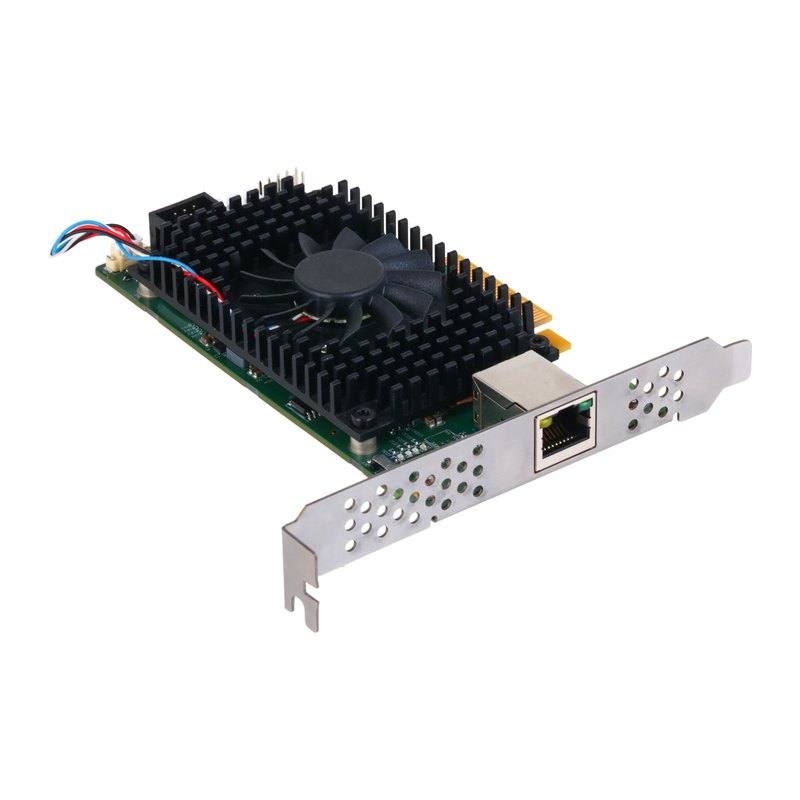
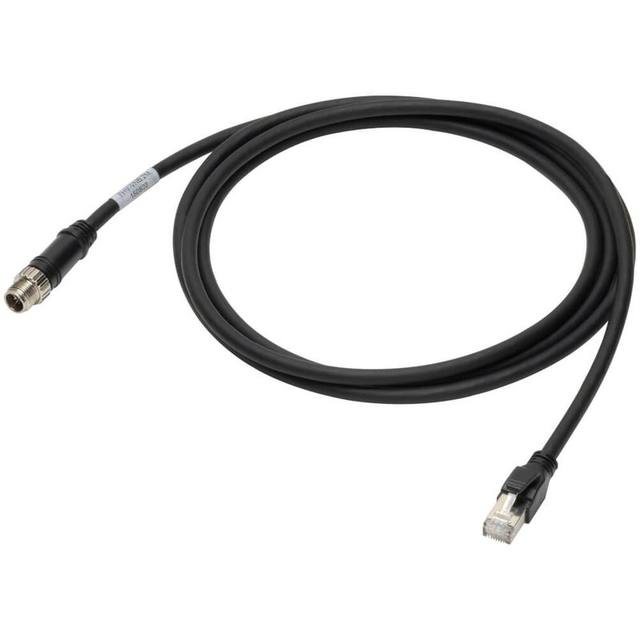
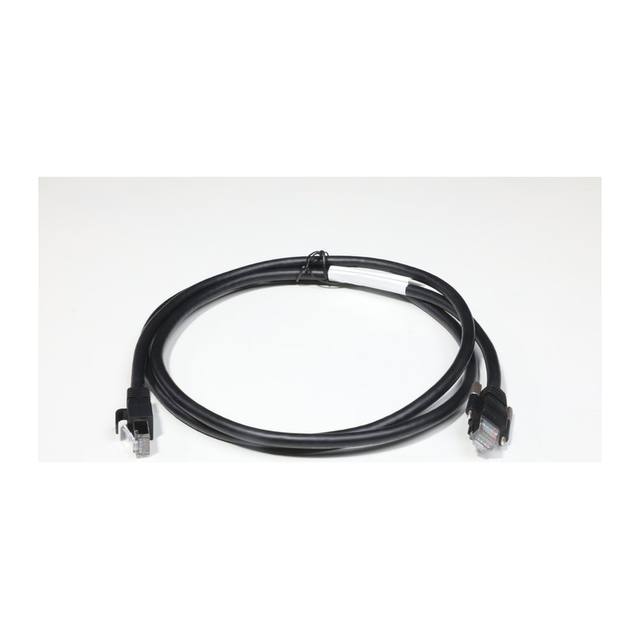
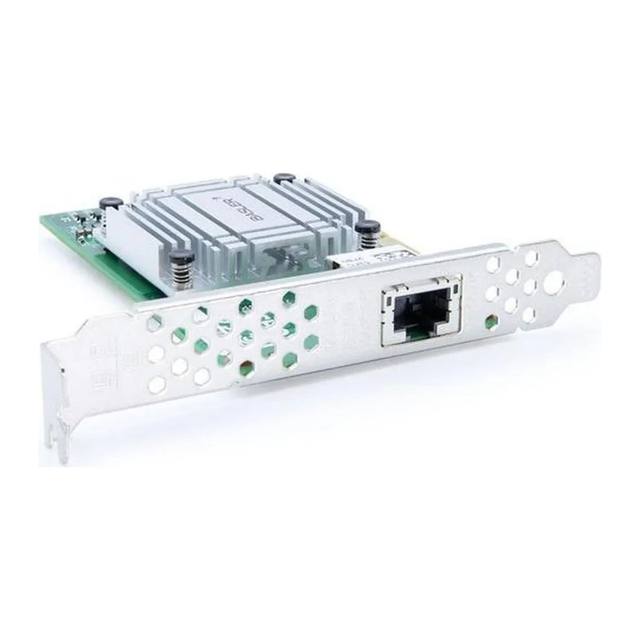
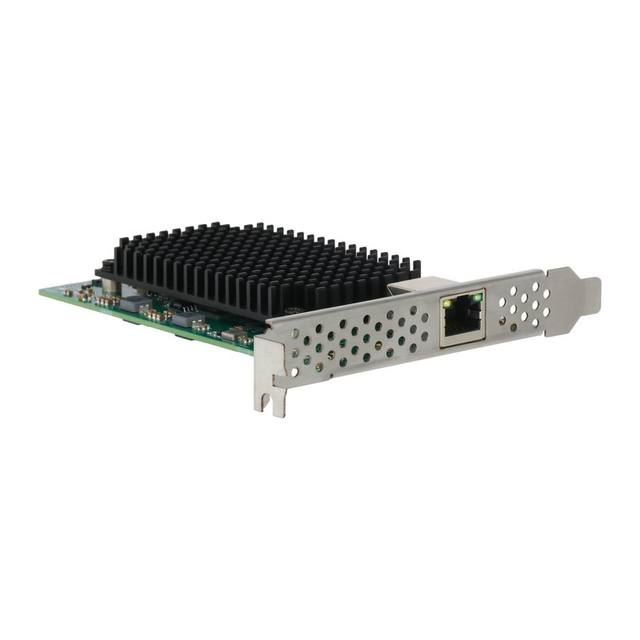
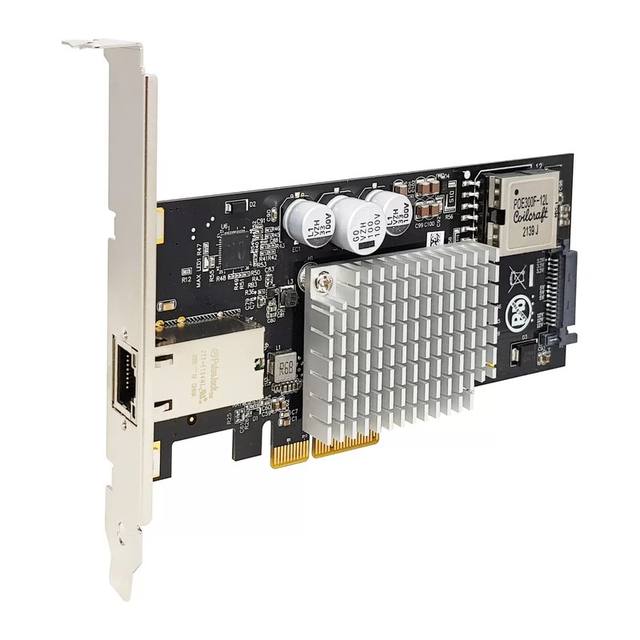
The iRAYPLE GT-7G10E is a 10GigE interface card with one camera port. The card type is Interface card (GigE / USB), and the single RJ45 connector is listed at 100Mbps, 1Gbps, 2.5Gbps and 10Gbps, with the bandwidth quoted as 10 Gbit/s. This range of listed speeds covers cameras from a 100Mbps link up to a 10Gbps link on the one port.
The card connects to the host over PCIe Gen2 X4. It measures 137.5 mm × 120.8 mm × 21.6 mm, weighs 0.35kg, has a power consumption of 9W and operates from 0 °C to +50 °C. The listed operating system support is Windows7/10/11 64bits.
In practice the card fits a single-camera station that wants a 10GigE-class link. All 10 Gbit/s of the card's bandwidth is available to the one port, so the camera count is one per card; stations needing more cameras need additional ports or cards.
Best for
Single-camera 10GigE stations where one camera has the full 10 Gbit/s
Setups with a camera at 2.5Gbps, 1Gbps or 100Mbps through the same RJ45 port
Windows7/10/11 64bits vision PCs with a PCIe Gen2 X4 slot available
Single-camera stations that need one RJ45 camera port added to a PC
Selection notes
Link speeds listed for the RJ45 port are 100Mbps, 1Gbps, 2.5Gbps and 10Gbps; match your camera to one of them.
The host bus is PCIe Gen2 X4, so confirm the PC provides this connection.
Operating system support is listed as Windows7/10/11 64bits; confirm your software stack runs on one of these.
The card draws 9W and operates between 0 °C to +50 °C, so plan ventilation inside the PC chassis.
The weight is listed as 0.35kg and the dimensions are 137.5 mm × 120.8 mm × 21.6 mm; check them against the chassis.
Specifications: General
Brand
iRAYPLE
Card type
Interface card (GigE / USB)
Specifications: Performance
Total bandwidth
10 Gbit/s
Specifications: Interface
Interface
1×RJ45; 100Mbps; 1Gbps; 2.5Gbps; 10Gbps
Camera ports
1
PC bus
PCIe Gen2 X4
Specifications: Electrical
Power consumption
9W
Specifications: Environment
Operating temperature
0 °C to +50 °C
Specifications: Software
Operating systems
Windows7/10/11 64bits
Specifications: Mechanical
Dimensions
137.5 mm × 120.8 mm × 21.6 mm
Weight
0.35kg
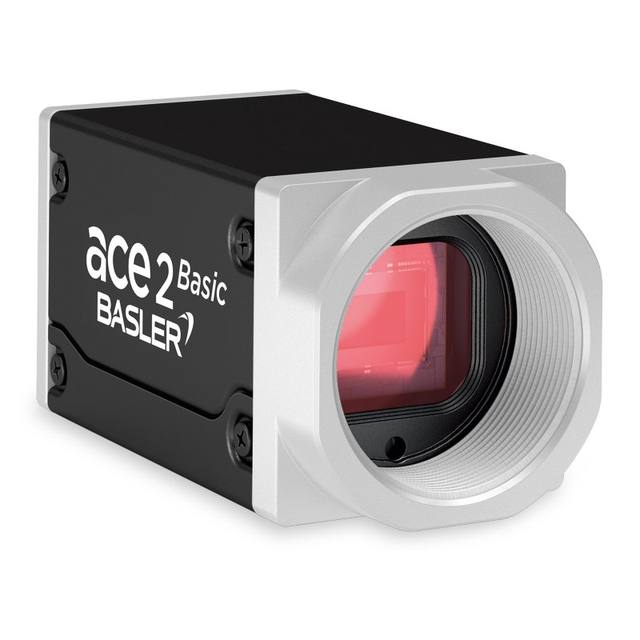
968 cameras are compatible with this card.
Matched automatically by: camera interface matches the card (gige vision) · card link speed is at least the camera link speed (cxp-6 / cxp-12, 1–10 gige) — this card: 1×RJ45; 100Mbps; 1Gbps; 2.5Gbps; 10Gbps · 1 camera port.
Follow these steps to bring up your iRAYPLE camera, capture a first image, and move from the viewer to your own application. The flow is the same across the A, AE, AX and L series; only the physical interface differs.
Download and install the iRAYPLE machine-vision SDK together with its viewer client for your operating system. The installer provides the camera drivers, the GenTL producer, and the viewer you will use for first light. For GigE Vision models, also install or enable the bundled filter/performance driver on the network adapter to maximize throughput.
2. Connect the camera to the correct interface
Wire the camera to its matching host interface: a dedicated Gigabit (or 10 GigE) NIC for GigE Vision models, a USB3 Vision port with a quality cable for USB3 models, or a frame grabber for CoaXPress models. Power the camera (PoE, USB bus power, or PoCXP / external supply as applicable). For GigE Vision, put the NIC and camera on the same subnet and, where supported, enable jumbo frames.
3. Detect and open the camera in the viewer
Launch the iRAYPLE viewer, run device enumeration, and select your camera from the discovered list. Open it to load the device feature tree (GenICam node map). If a GigE camera is found but cannot be opened, correct the IP configuration so the camera and NIC are in the same address range.
4. Set exposure, gain and trigger, then grab a first image
Start with continuous (free-run) acquisition under stable lighting. Adjust exposure time and gain for a well-exposed, low-noise image, set the pixel format (e.g. Mono8 or a Bayer/RGB format), and tune white balance on color models. Once the live image looks correct, switch trigger mode to hardware or software trigger to synchronize capture with your process, and verify a single triggered frame.
5. Move from the viewer to the SDK or a GenICam library
With imaging confirmed, reproduce the same settings in code using the SDK's C/C++ or Python API: enumerate, open, configure the relevant GenICam features, register a frame callback or grab loop, and convert frames to your pipeline's buffer format. Since the cameras are GenICam/GenTL-compliant, you can alternatively drive them from a third-party GenICam vision library. From here a stable image stream can feed a deep-learning inspection step such as Rosepetal for automated quality control.
Frequently asked questions
The single RJ45 port is listed at 100Mbps, 1Gbps, 2.5Gbps and 10Gbps, with a bandwidth of 10 Gbit/s.